FPOM with RVT landscapes using RVT Displacement
FPOM RVT node allows you to achieve POM using a single RVT Displacement texture sample. This is useful for landscapes since you can write all the layers to a single virtual texture, and then at render time only read that one texture.
RVT Displacement - UE 5.4+
RVT Displacement feature was first added in 5.4, and is required for FPOM RVT to work.
Setup
- Create a new
Runtime Virtual Textureand set it to useDisplacement - Add a new
Runtime Virtual Texture Volumeto your landscape and assign the RVT_Displacement asset - Add the RVT_Displacement to your landscape list
Draw in Virtual Textures
Landscape Material - Output
- Pipe the material Displacement and hook it up to the
Runtime Virtual Texture OutputDisplacement channel
Landscape Material - Sample
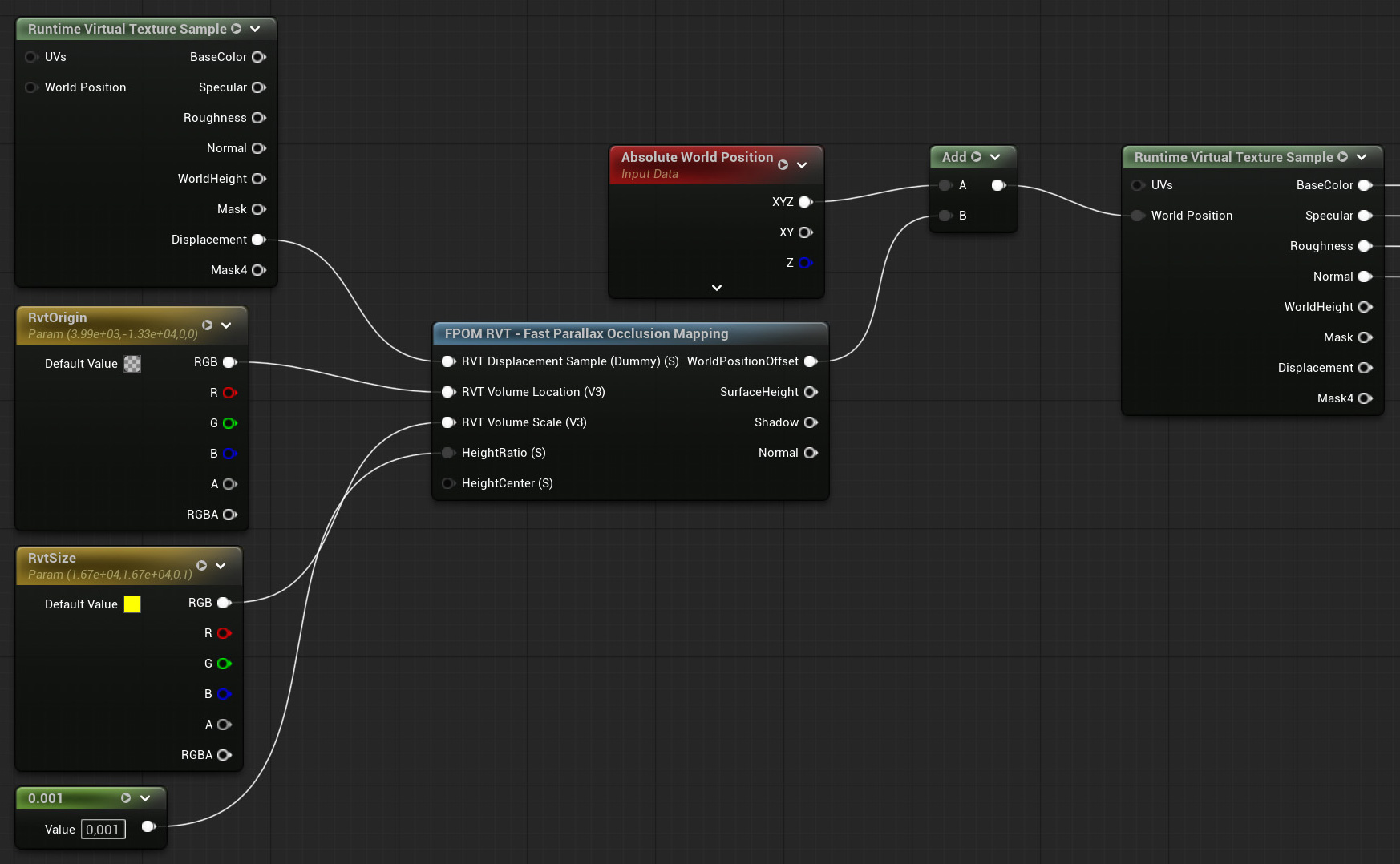
- Add a
Runtime Virtual Texture Samplenode, set it to use RVT_Displacement asset and setVirtual Texture Contentto Displacement - Add a
Constant3Vectornode and add the Location of theRuntime Virtual Texture Volumeto it - Add a
Constant3Vectornode and add the Scale of theRuntime Virtual Texture Volumeto it - Add a
Constantnode and set it to0.001for now - Add a
FPOM RVTnode and connect the four nodes as shown in the image bellow - Add a
Absolute World Positionnode and do aAddwith it and FPOMsWorldPositionOffsetoutput - Hook the output of this into the
Runtime Virtual Texture Sample(BaseColor, etc) World Position input
Virtual Textures
RVT loads parts in a tiled page layout. Everything is not loaded the whole time like a normal Height Texture is. This can cause some loading popping when the RVT pages are loading. And is a side effect with RVT that can't be avoided.